Features

Everything the app does, from the value on the customer’s screen to the settings that decide it. What the customer sees is marked as such; the rest is for administrators.

On the request page

A few labelled values, exactly where the customer looks

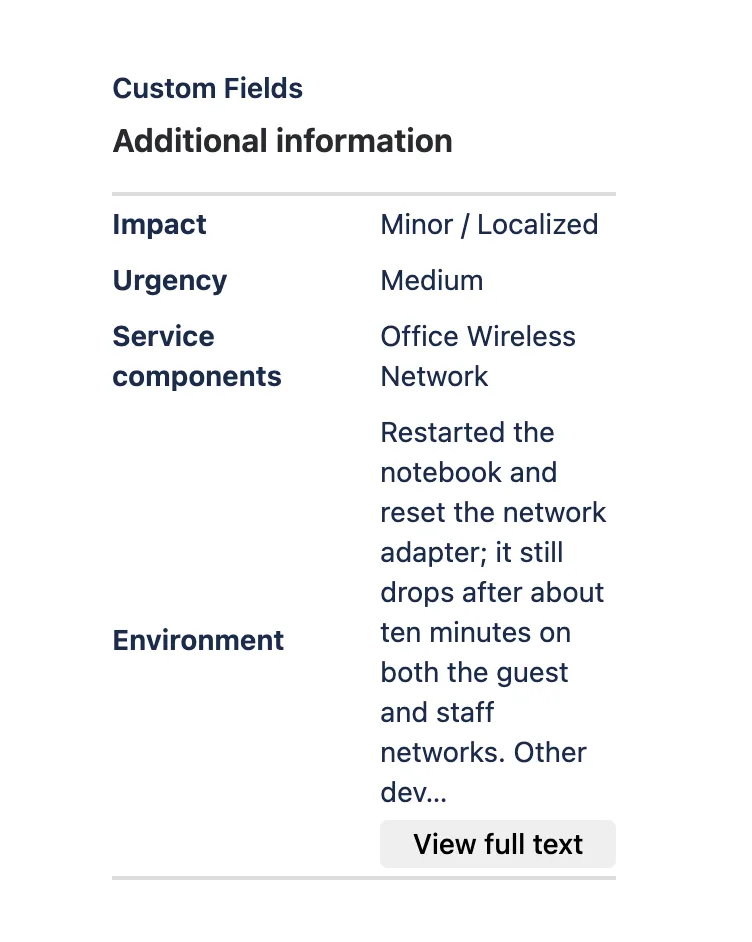
The panel sits in the right-hand column of the request detail page, under status and request type. It shows only the fields you configured, and only on requests where they have a value.

Values rendered for people, not dumped

Every value is formatted for the person reading it, in their language and time zone.

  • Dates and date-times in the viewer’s locale and time zone.
  • Multi-line text keeps its line breaks and lists.
  • Cascading selects show both levels, Hardware – Laptop.
  • A value in a shape the app does not recognise shows nothing at all, so an internal structure can never reach an unlicensed customer.
The app’s panel on a portal request: Impact, Urgency, Service components and a shortened Environment text with a View full text button.
The panel on request ITSM-50, as the customer sees it.

Long values as a preview

The portal’s sidebar is narrow. Flag a field for long values and the panel shows a short preview with a View full text button, instead of a column of wrapped words. One setting per field.

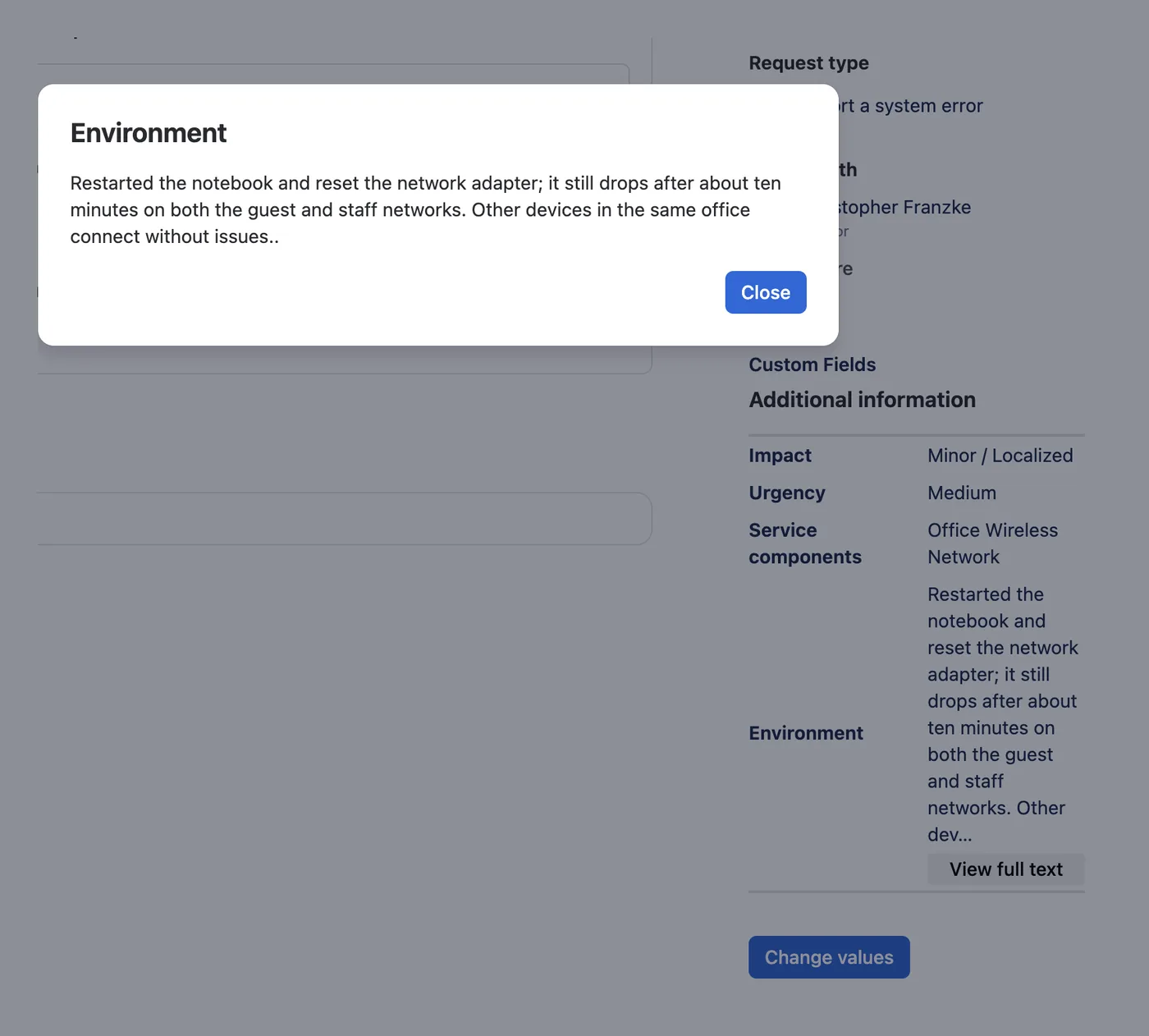
A dialog titled Environment showing the full text of a long field value, over the request page.
“View full text” opens the whole value in a dialog.

Portal editing

Customers correct the details they own

Editing is off after installation and after every upgrade. A field becomes editable only when an administrator switches it on, and Jira still decides what it accepts.

The right control for each field

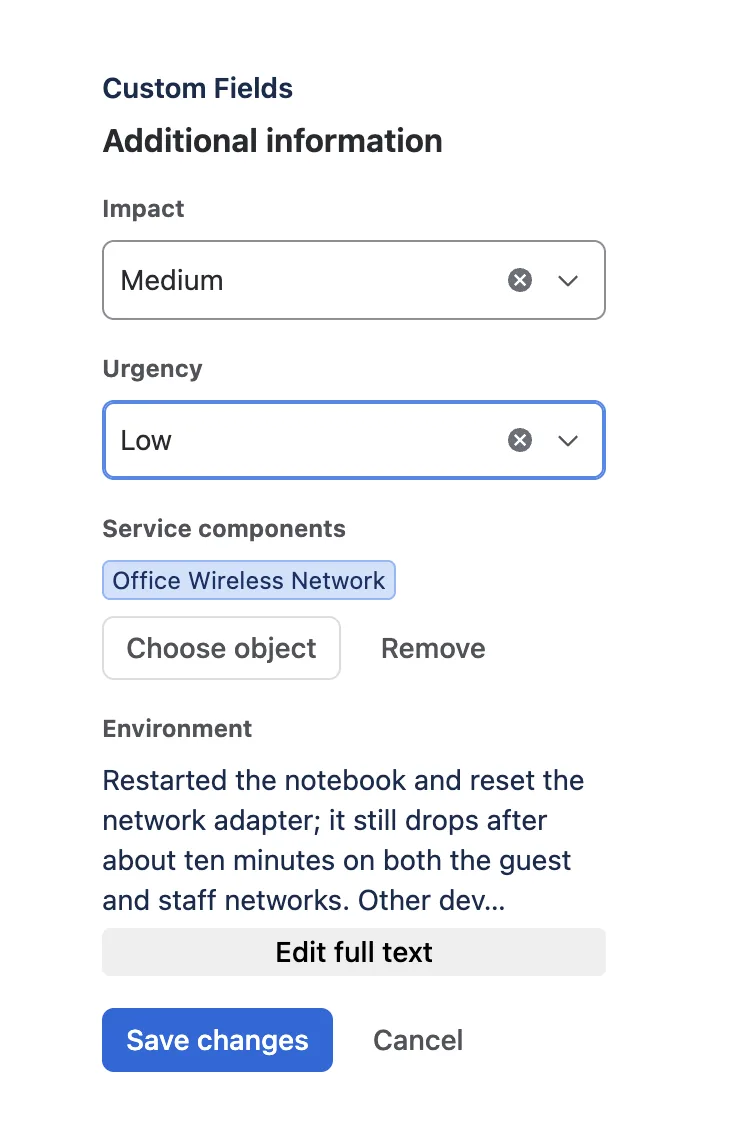
A dropdown of exactly the options Jira offers for that request, a date picker for a date, a search dialog for an Assets object, a text box for text. A long field opens a larger editor in a dialog.

A short hint per field tells the customer what belongs there, translatable like the label. A field marked required cannot be saved empty.

Edit mode in the portal panel: Impact and Urgency as dropdowns, a Choose object button for the service component, an Edit full text button, Save changes and Cancel.
After “Change values”: inputs for the fields you opened, read-only text for the rest.

Who may edit, and until when

Settings

Set once per configuration, and it applies to every editable field in it.

Audience

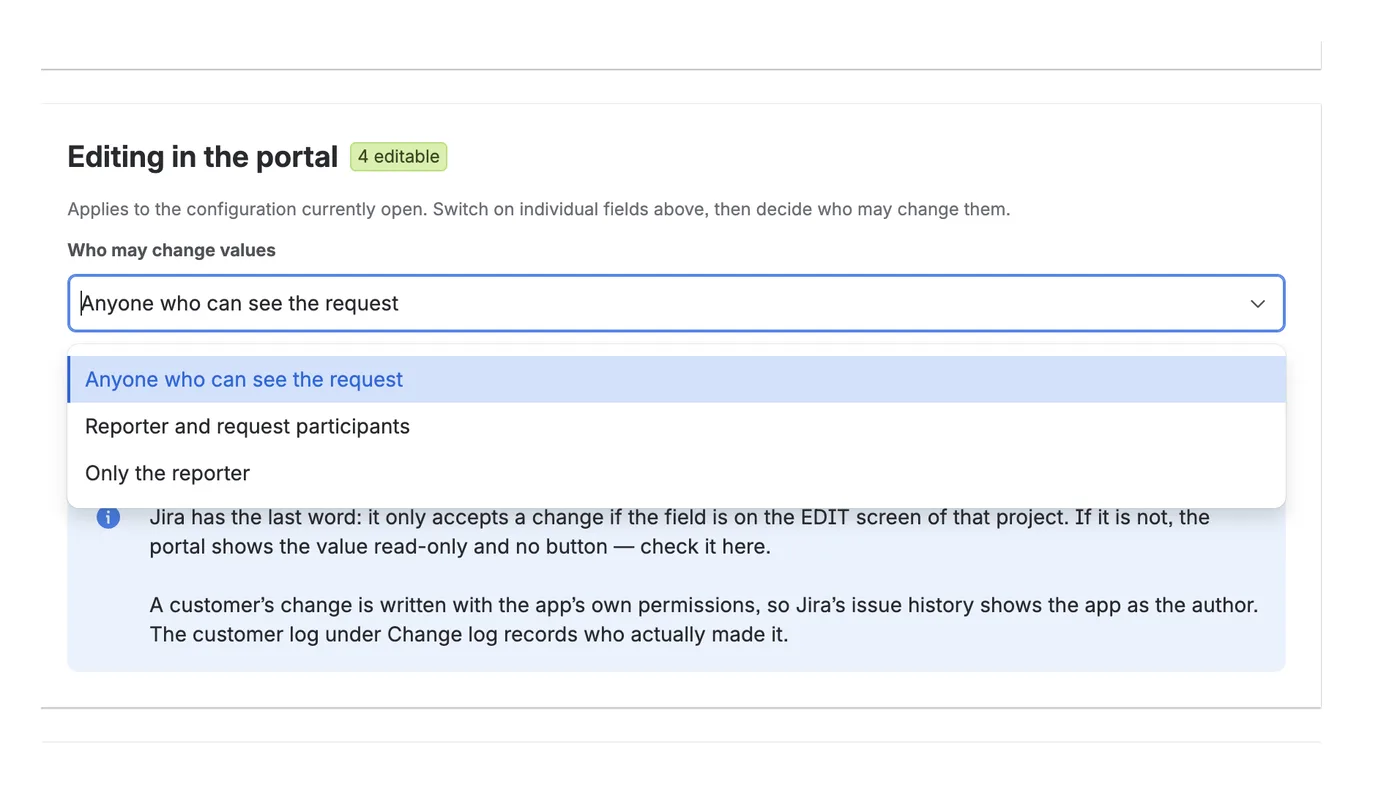
  • Anyone who can see the request
  • Reporter and request participants
  • Only the reporter

Timing

  • Only while the request is open (default)
  • Or for the request’s whole life
Jira has the last word

Settings

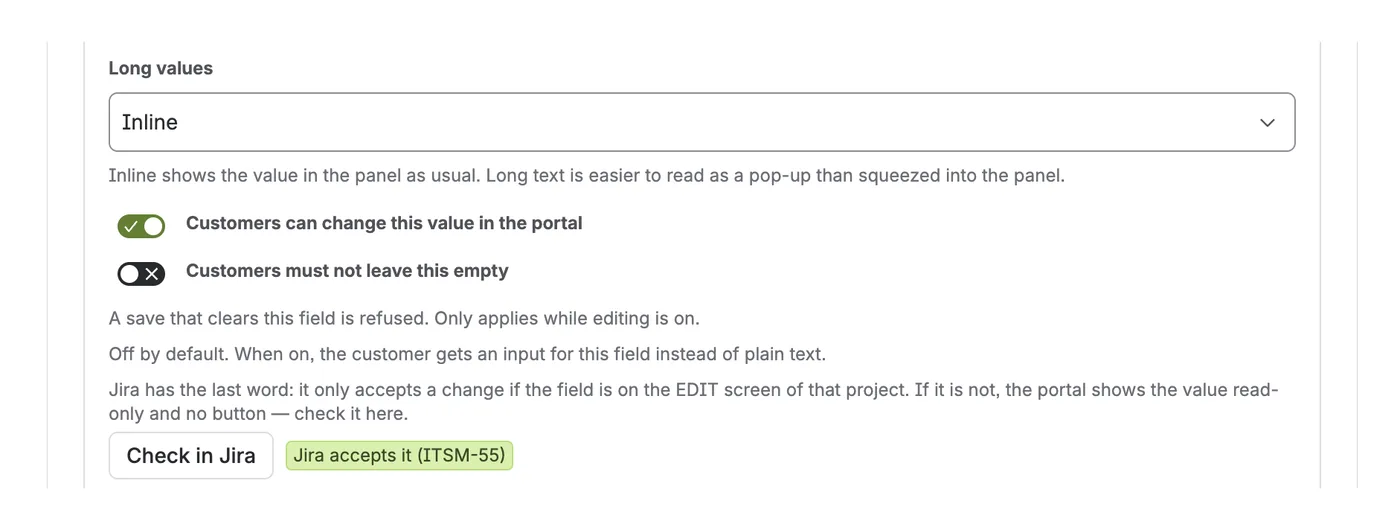
Jira accepts a change only if the field is on the project’s edit screen and the app may edit issues there. The settings page cannot know that in advance, so it asks.

Check in Jira

  • Samples the project’s newest request
  • Names the missing screen or permission

Never editable

  • People and group fields
  • Issue type, status, project, parent

One policy per configuration, and no overwritten agents

You choose which fields per field, and who and when per configuration. The settings page reminds you that Jira still decides, and that its history will name the app.

The value the customer saw is sent back with the change. If an agent edited that field in the meantime, the customer’s save is refused and they are asked to reload. A refused save is preferred to a silent overwrite, every time.

The Editing in the portal settings: who may change values, and a switch to allow changes only while the request is open.
Editing in the portal: the audience and the timing, per configuration.

Assets objects

An Assets field, readable at last

Jira’s issue API returns an Assets (CMDB) field as identifiers only. That is why portals usually show it blank, or as a number. The app looks up the object’s name and shows that.

Object names, not numbers

Customer sees

The object already linked to the request is shown by its name, read from Assets when the request is viewed and not stored.

Access

  • Read-only access to Assets
  • Never asks to change your CMDB

Let the customer pick an object

Customer sees

A search dialog restricted to the object types you allowed for that field. With no type allowed, the search finds nothing rather than everything.

To get the types right

  • Detect accepted types reads the types already used on the field
  • Jira’s own filter still applies, and the customer is told if it refuses

Assets is part of JSM Premium. On a site without it, there are no Assets fields to show and the app’s Assets permissions are never used.

Choosing fields

Pick from a list. Relabel for your customers.

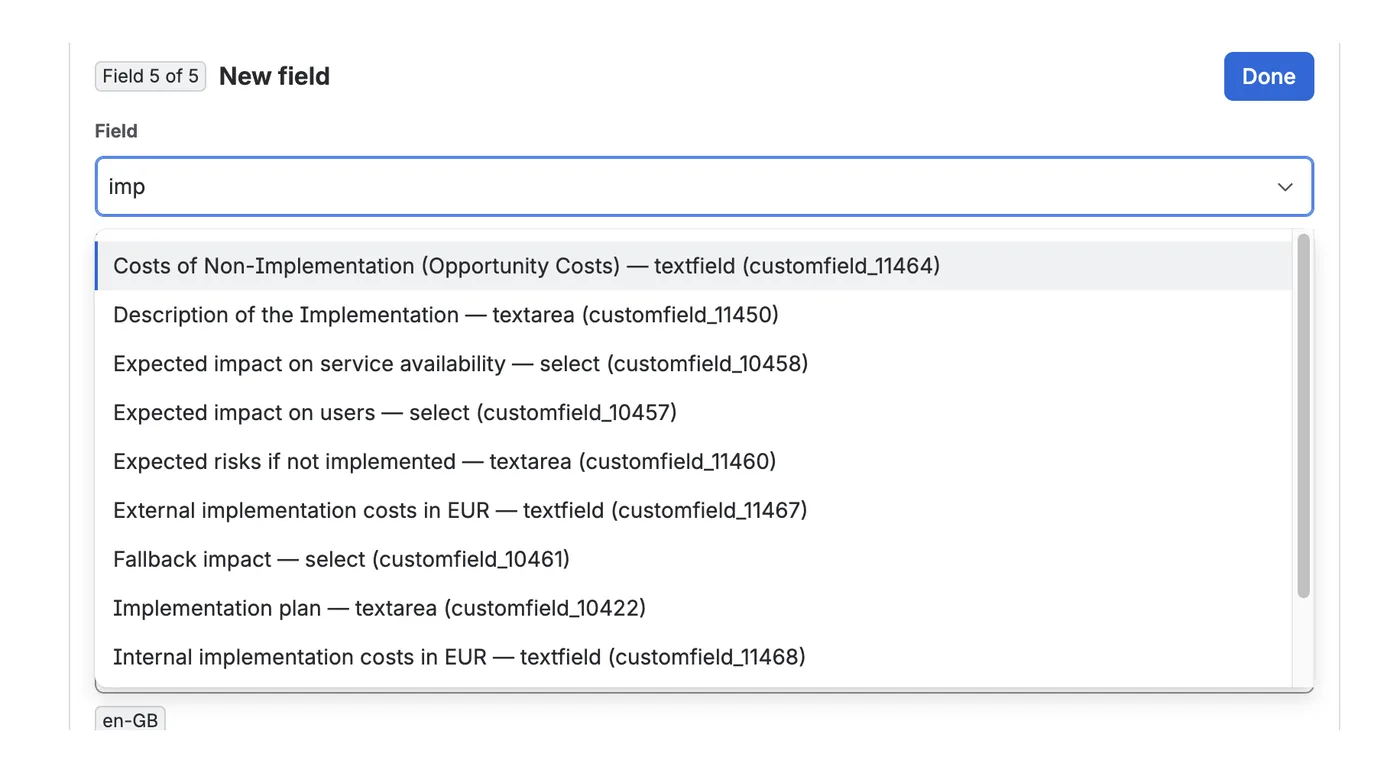
The settings page lists every field on your site with its name, type and ID. Selecting one pre-fills its label with the Jira name, which you can change.

Custom fields and system fields

Priority, Due date, Components, Versions, Description and Resolution are in the same list as your custom fields. A field already chosen is hidden from the other rows, so nothing is mapped twice.

Two kinds are refused whatever you configure, including through import: the security level, which is an access-control fact rather than a value, and containers such as comments, worklogs, attachments and issue links.

The field dropdown on the settings page, listing fields by name with their type and ID, system fields marked System.
The field picker, including Jira’s system fields.

Labels that make sense outside your team

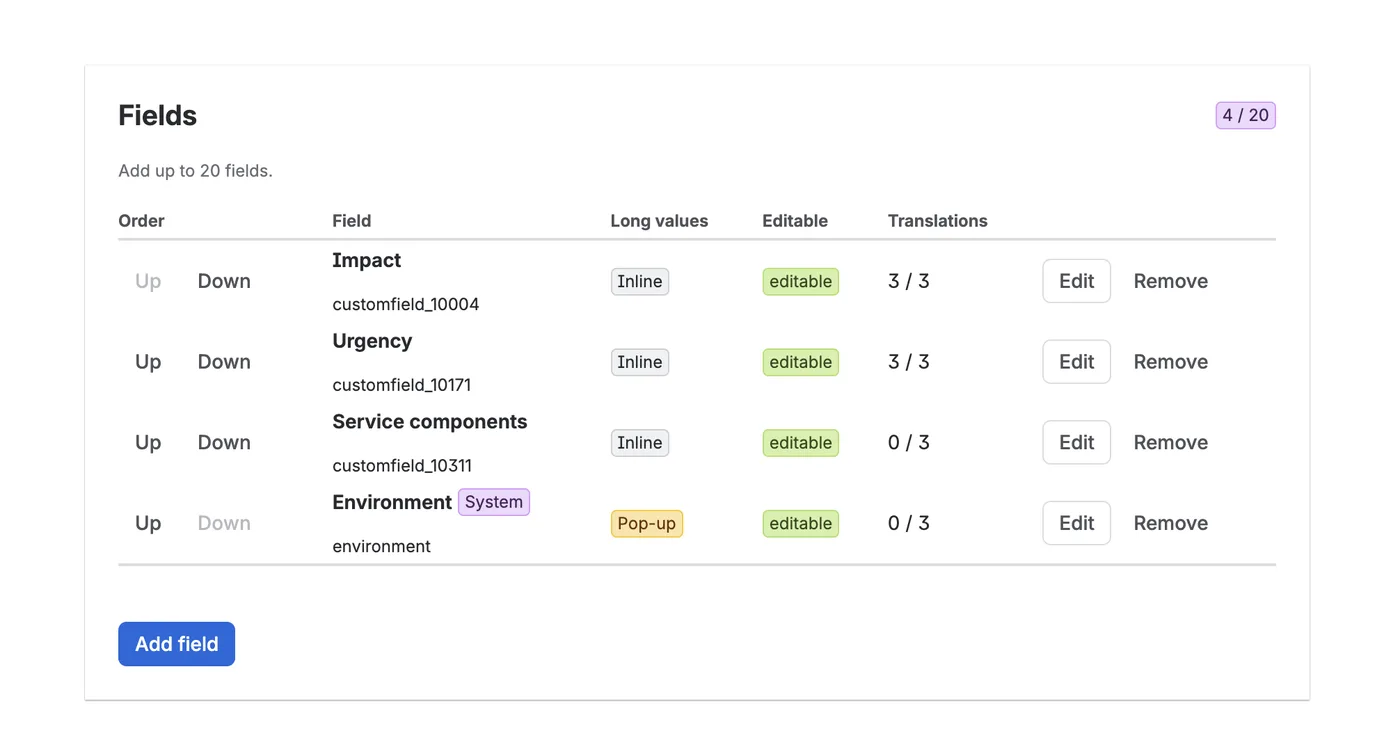
CF_ASSET_TAG_PRI means nothing to a customer. Device serial number does. Every field gets a display label, and the panel an optional heading.

The field table: order buttons, field name and ID, long-values setting, editable marker, translation count, Edit and Remove.
Up to 20 fields per configuration, in the order you set.

Per service desk

Different desks, different fields

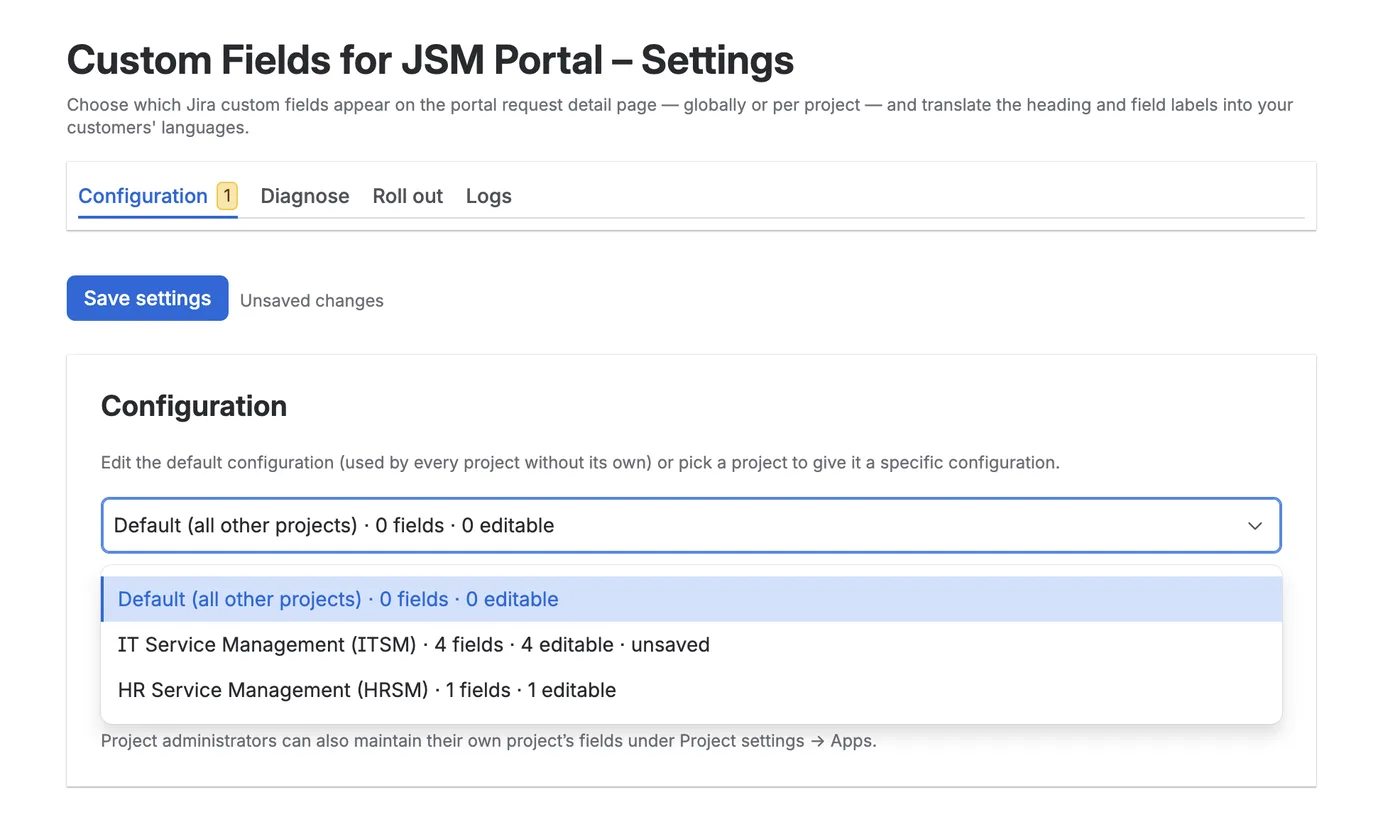
A default configuration applies everywhere. Any service project can replace it with its own fields, labels and editing rules.

A default, and up to 50 overrides

A project without its own configuration uses the default. A project configuration replaces the default for that project, so an HR desk never shows an IT field by accident.

The configuration selector on the settings page, listing the default configuration and several service projects.
Switch between the default and each project’s configuration.

Project administrators maintain their own

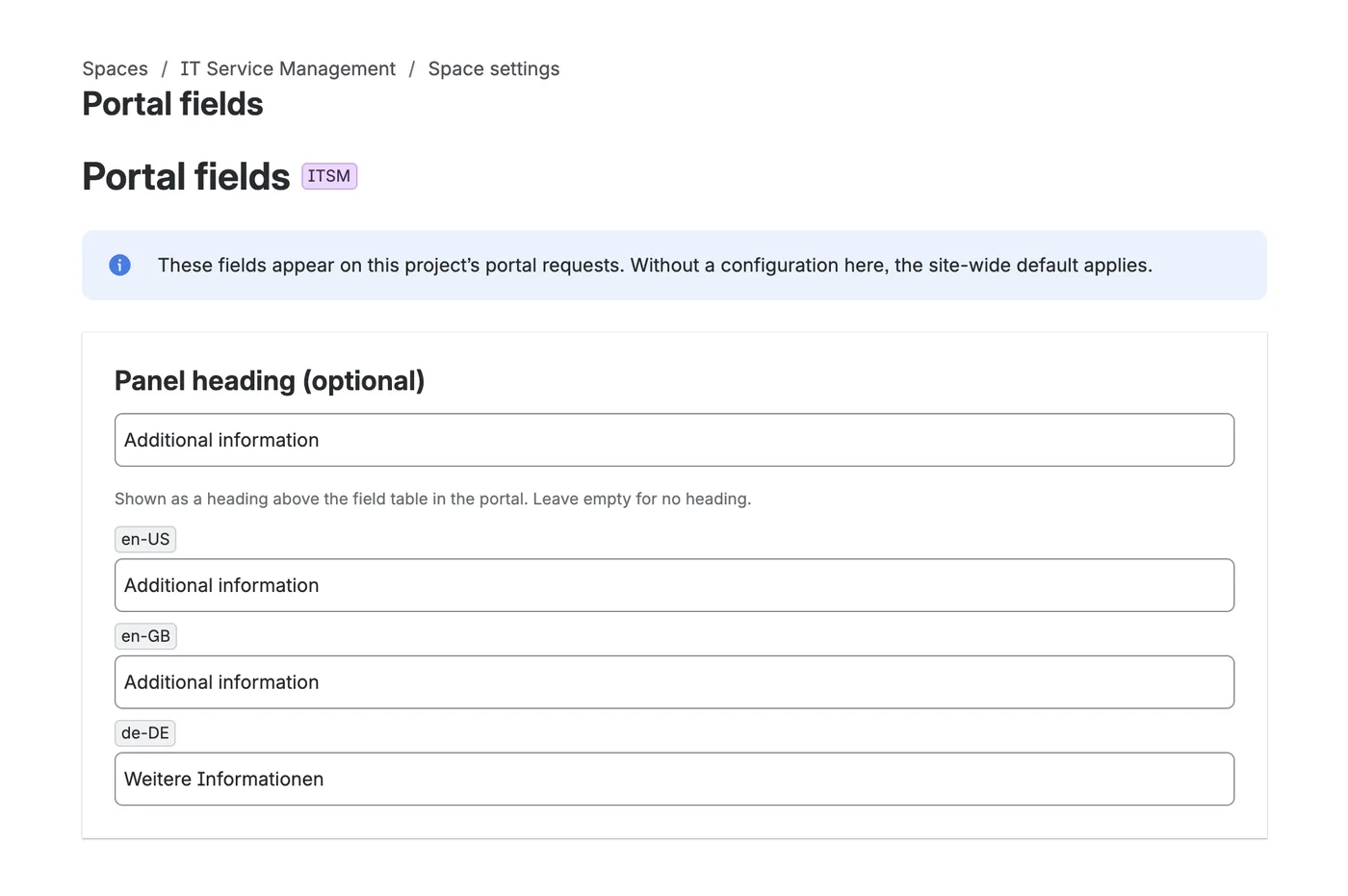
Service desk leads change their own labels and fields without waiting on a site admin. The page reaches only its own project, re-checked on the server for every call. The default configuration and the languages stay with Jira administrators.

The Portal fields page under a project’s settings, showing that project’s fields and editing settings.
Project settings → Apps → Portal fields.

Languages

In the customer’s language, including your own words

The app’s interface is fully translated into 26 languages: every string, in every file, checked automatically. It follows each viewer’s Atlassian language and falls back to English.

Translate headings, labels and hints

Choose the languages your customers use, then translate as much as you like. Anything untranslated shows your default wording. Removing a language removes its translations everywhere, so nobody keeps seeing text you thought you deleted.

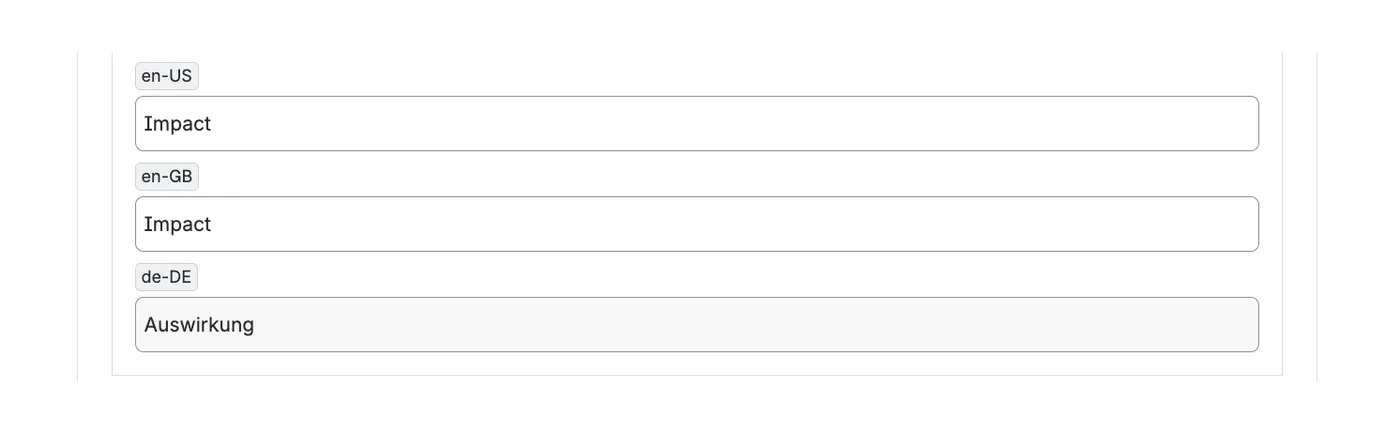
A field’s label with translation inputs for German and French.
Translate each label, the heading and each hint.

Rollout, diagnosis & logs

Manageable on a site with fifty service desks

The tools a Jira administrator needs once the app is used by more than one team.

Apply one configuration to many projects

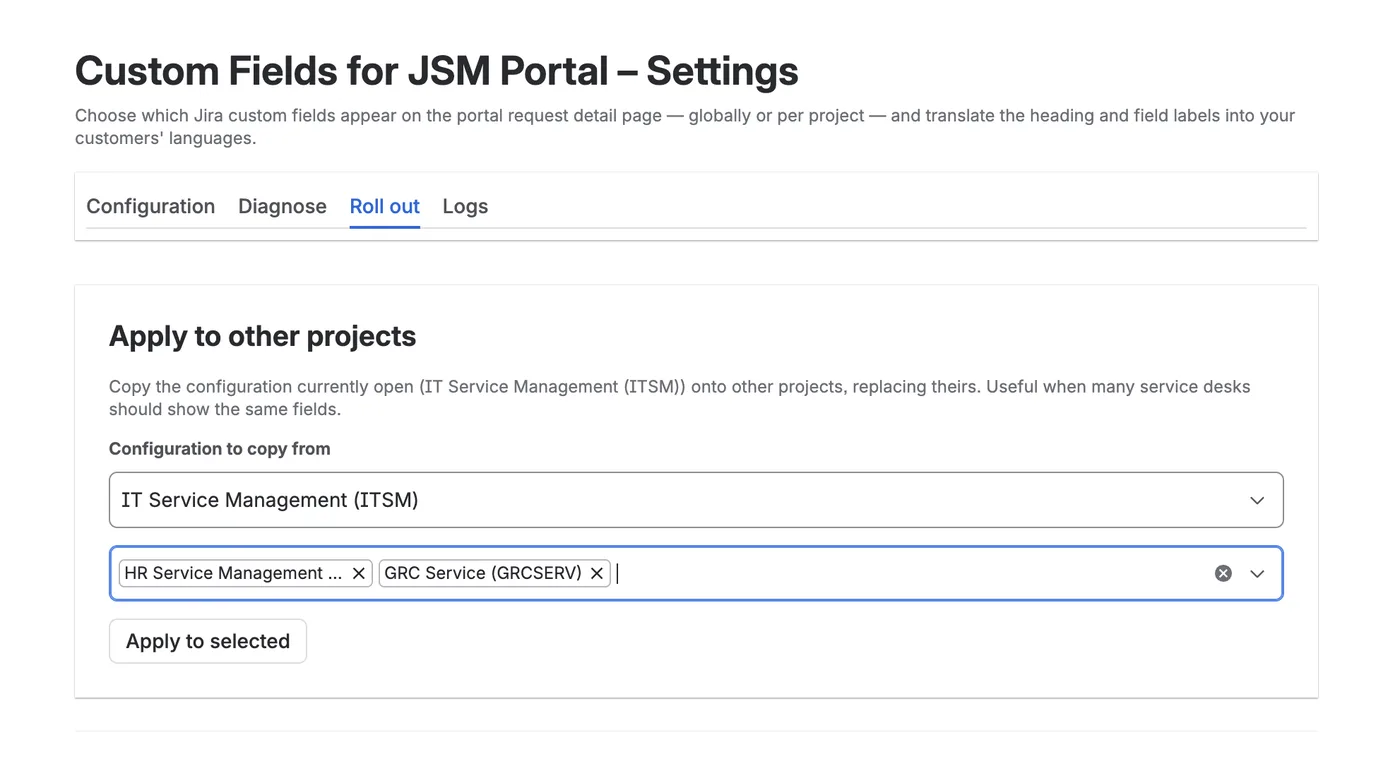
Copy a configuration that works onto any projects you select, in one step. Export a complete configuration as text and import it on another site to keep staging and production in step.

Apply to other projects: a configuration being copied onto a selection of service projects.
Roll out → Apply to other projects.

Diagnose without guessing

  • Check a request: per field, whether it appears, whether it is editable, and which configuration applies.
  • Check in Jira: whether Jira would accept a customer’s change, and what is missing if not.
  • Display check: finds a real value for each field and tells you whether it can be shown, because a field that cannot be rendered looks just like an empty one.
  • Field inventory: every field on your site, grouped by whether customers could edit it.
Check in Jira result on a field, reporting whether Jira would accept a customer’s change on the newest request.
Check in Jira, next to the editable switch.

Two logs, both capped and deletable

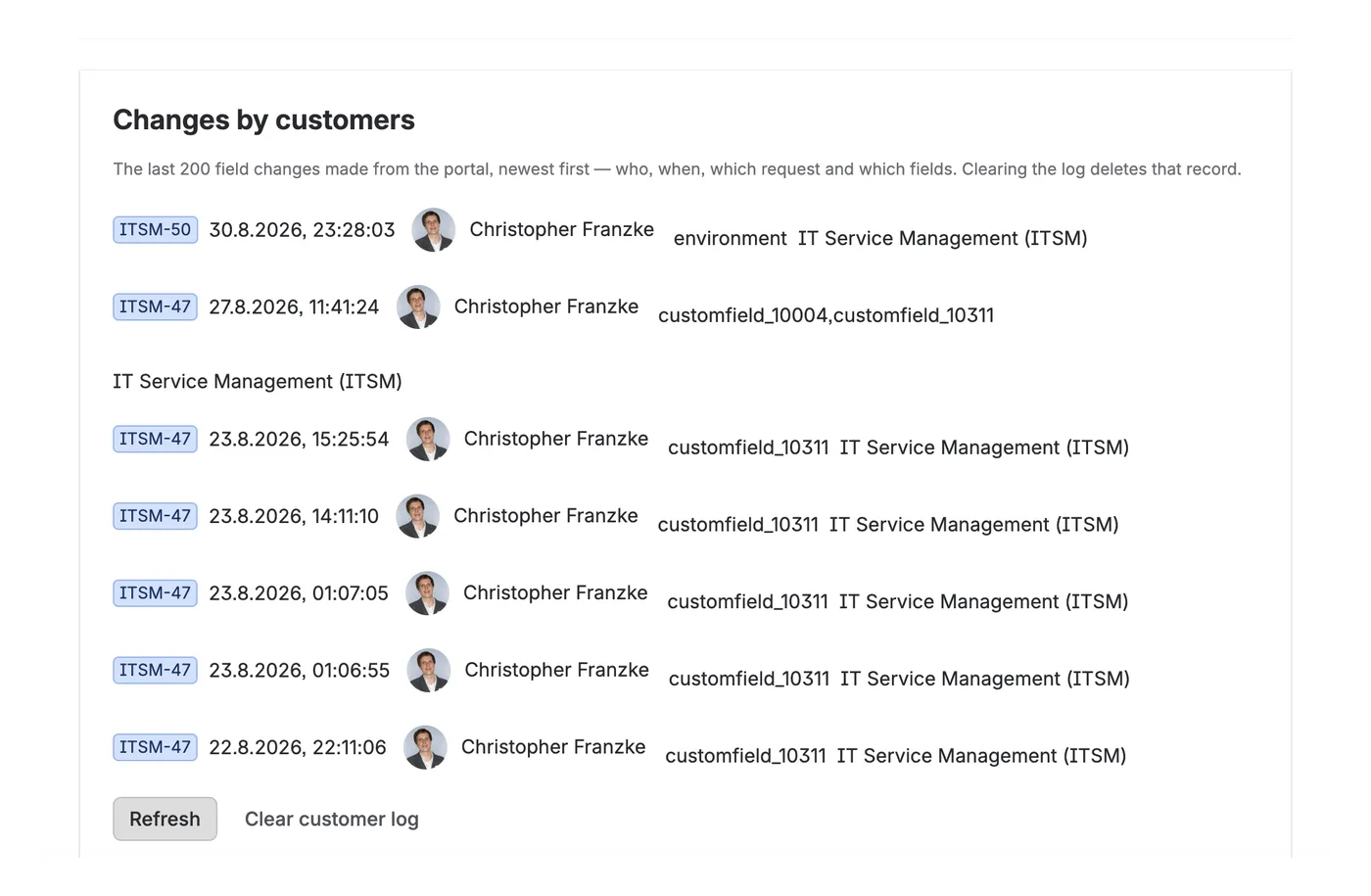
The change log records which administrator changed which configuration, the last 100 changes. Changes by customers records which customer changed which fields on which request, the last 200, field IDs only, never the values. Either can be cleared at any time.

Changes by customers: rows with request key, date and time, the customer, and the field IDs they changed.
Logs → Changes by customers.

Limits

The numbers, stated up front

LimitValue
Fields per configuration20
Project configurations50, plus the default
Heading, label, hint, each translation100 characters
Languages26
Text a customer can enter32,767 characters, Jira’s own limit
Values in a multi-value field100
Allowed Assets object types per field20
Change log / customer logLast 100 / last 200 entries

Known limitations

  • Rich text is edited as plain textSaving a multi-line field replaces its formatting, images and links. The settings page warns before you switch this on.
  • A portal edit is attributed to the appIn Jira’s issue history. The app’s own customer log names the person.
  • People and group fields stay read-onlyBy design: a customer must never browse your user directory.
  • Jira’s filter on an Assets field is not readableBy any app. If your allowed types are wider, Jira refuses the save and the customer is told why.

Start with the three fields your customers ask about most

Show them first. Open one for editing when you are ready. Nothing becomes editable until you switch it on.